Docs menu
Applications
An application is the top-level project on Primcloud: one git repo, one region, and one or more environments.
On this page
An application is the top-level project on Primcloud. It ties one git repo to one region and holds its environments underneath it: one, production, on Standard, and more per application on Pro and Team. Most of what you see in the dashboard is scoped to a single application: its deployments, its domains, its settings, its logs.
What an application owns#
The application is the outer boundary; environments live inside it. That split matters because some things (like the repo you deploy from and the region compute runs in) are the same across every environment, and other things (like which branch that environment tracks and what secrets its pods see) are scoped per environment.
| Concern | Owned by |
|---|---|
| Git repository | Application |
| Provider connection | Application |
| Region | Application |
| Display name and slug | Application |
| Environments | Application (list) |
| Tracked branch | Environment |
| Secrets | Environment |
| Pod formations | Environment |
| Compute size (per formation) | Environment |
| Custom domains | Environment |
| Deployment history | Environment |
Creating an application#
Applications are created by importing a git repository. Hit Import Git Repository on the applications list to open the import wizard, which walks you through three quick steps:
- Select a repository from the ones you've granted your git provider access to.
- Configure the deployment: the branch to track, the region to run in, and any secrets to seed.
- Verify the target commit and hit Import.
On import, Primcloud:
- Creates the application with a slug derived from the repository name (plus a short suffix to keep it globally unique). The slug is fixed for the app's life. It's what shows up in URLs, the free subdomain, and every command that references the app.
- Creates a production environment tracking the branch you picked.
- Provisions the free
<app-slug>-production.primcloud.appURL for the production environment. - Kicks off the first deployment.
The application dashboard#
Every application has four tabs across the top of its dashboard:
- Overview: the current release and live URL, a Metrics card, recent deployments, the pod formations, and the Tasks box with recent runs and a bar for running a command against the current build. The Metrics card charts the web formation's CPU and memory as a percentage of its compute size: LIVE follows the running pods minute by minute, and 1H, 6H, and 24H show that window averaged into 60 points. The selected range stays in the page's URL, so a shared link or a refresh reopens it.
- Deployments: the full deployment history, each entry with build and release logs, plus rollback and redeploy actions.
- Logs: the application (
stdout/stderr) and access (HTTP request) streams, live-tailing and searchable. - Settings: application info (display name and slug), source (repo and branch), custom domains, secrets, maintenance mode, and delete.
Here's the Overview tab for a running app:
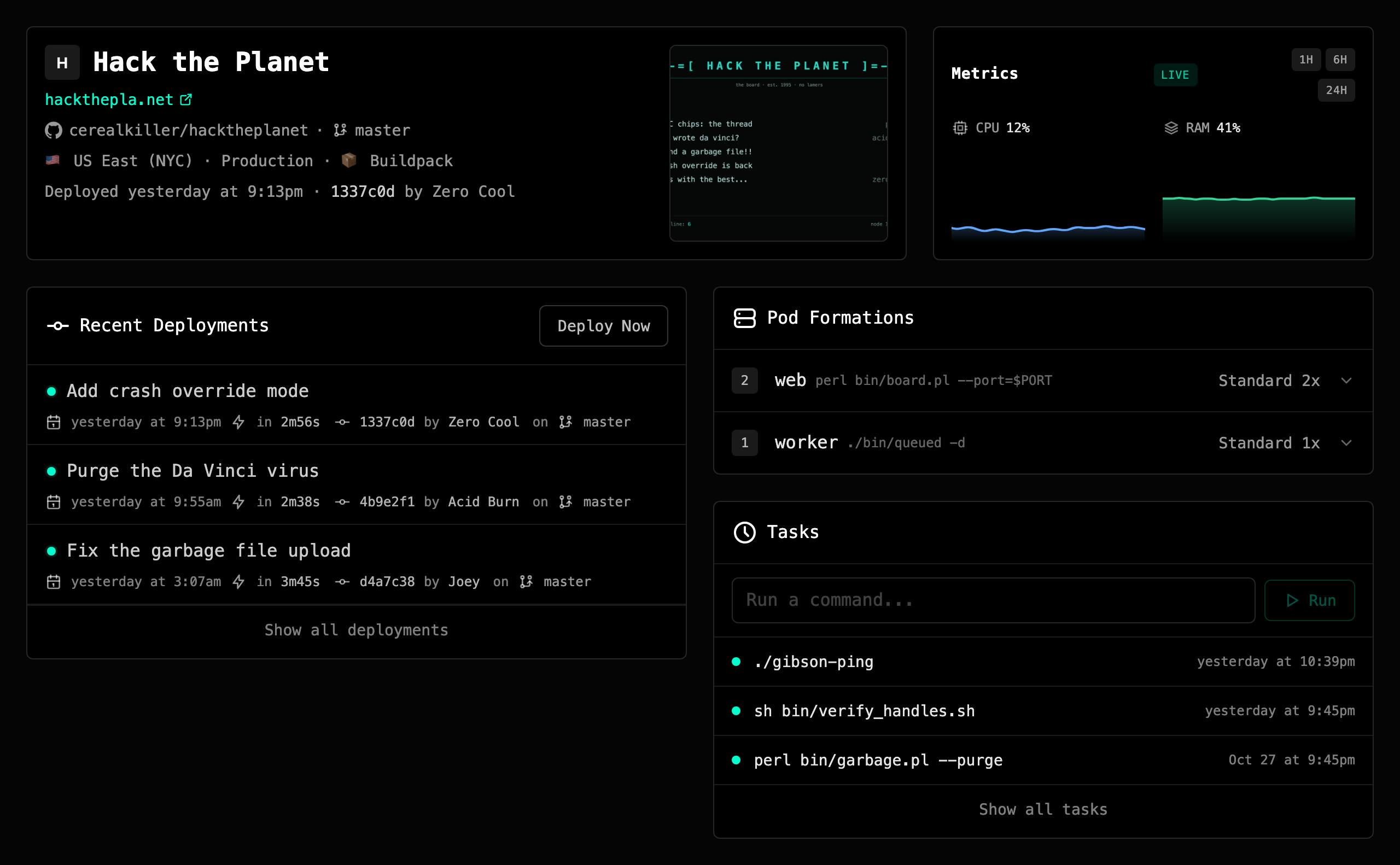
Each of those areas has its own page in the docs (linked from the sidebar); this page is just about the application-level shape.
Renaming#
You can change the application's display name any time from Settings. This is the friendly name that shows up in the app list and the dashboard header. The slug is separate and stays fixed for the life of the app; changing the display name doesn't change any URL, subdomain, or reference tied to the slug.
If you need the slug itself changed (say, because the app's identity has shifted enough that the old slug is confusing), that's a support request rather than a self-serve action. Same for transferring an application to a different account: contact support with the source and destination accounts and we'll walk through it with you.
Deleting an application#
Delete from the Delete Application section at the bottom of the application's Settings page. Primcloud asks for your password to confirm. Deleting an application is a big deal and we don't want a stray click to take one out.
On delete, every environment's pods stop immediately: compute metering stops the same minute, and traffic to your app stops reaching it. A deployment still in progress is canceled and a task still running is ended.
The application itself doesn't disappear from your account right away. Primcloud's deletion policy gives you a 7-day recovery window, a full week during which the application, and everything it contained, can be brought back. It's there because "I meant to delete the staging app, not production" happens to everyone eventually, and a platform that treats a deploy button and a delete button the same way isn't one you should trust with real work. See the next section for the recovery flow.
The application is fully purged 30 days after you delete it.
Restoring a deleted application#
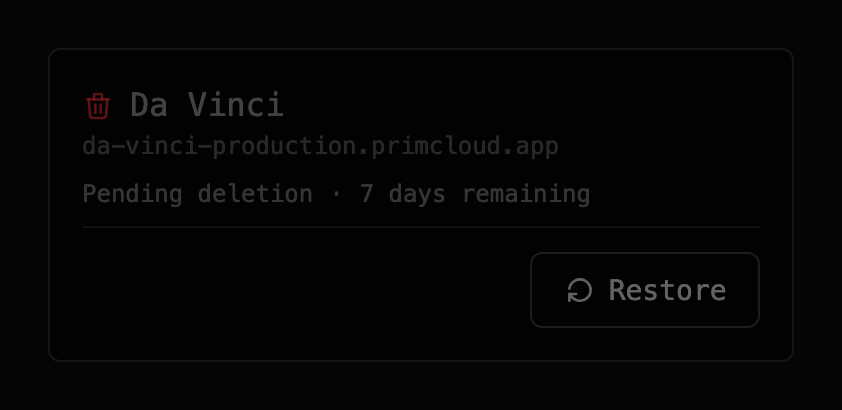
Deleted applications stay on your applications list, greyed out, with a Restore button and a "N days remaining" indicator counting down the recovery window. Click Restore any time inside the 7 days and Primcloud brings everything back (every environment, deployment, custom domain, and task) and scales every process back to the pod count it was set to, so traffic reaches your app again. A deployment canceled by the delete stays canceled and a task it ended stays ended; redeploy or run the task again.
Restore counts as bringing compute back online, so it's blocked when your account isn't in Active billing state. Settle any outstanding invoice first, then restore; see Past-due & Suspension for the resource-gate rules.