Docs menu
Payment Methods
Payment methods live on Primcloud with one card marked as default. Invoices charge the default automatically each billing cycle.
On this page
Payment methods live on Primcloud with one card marked as default. Invoices charge the default automatically each billing cycle. You can keep more than one card on file and switch which one is default whenever you want.
Adding a card#
Add a card from Account → Billing in the dashboard. Enter the name on the card, the card details, and choose whether to set the new card as your default. Save, and the card is on file immediately.
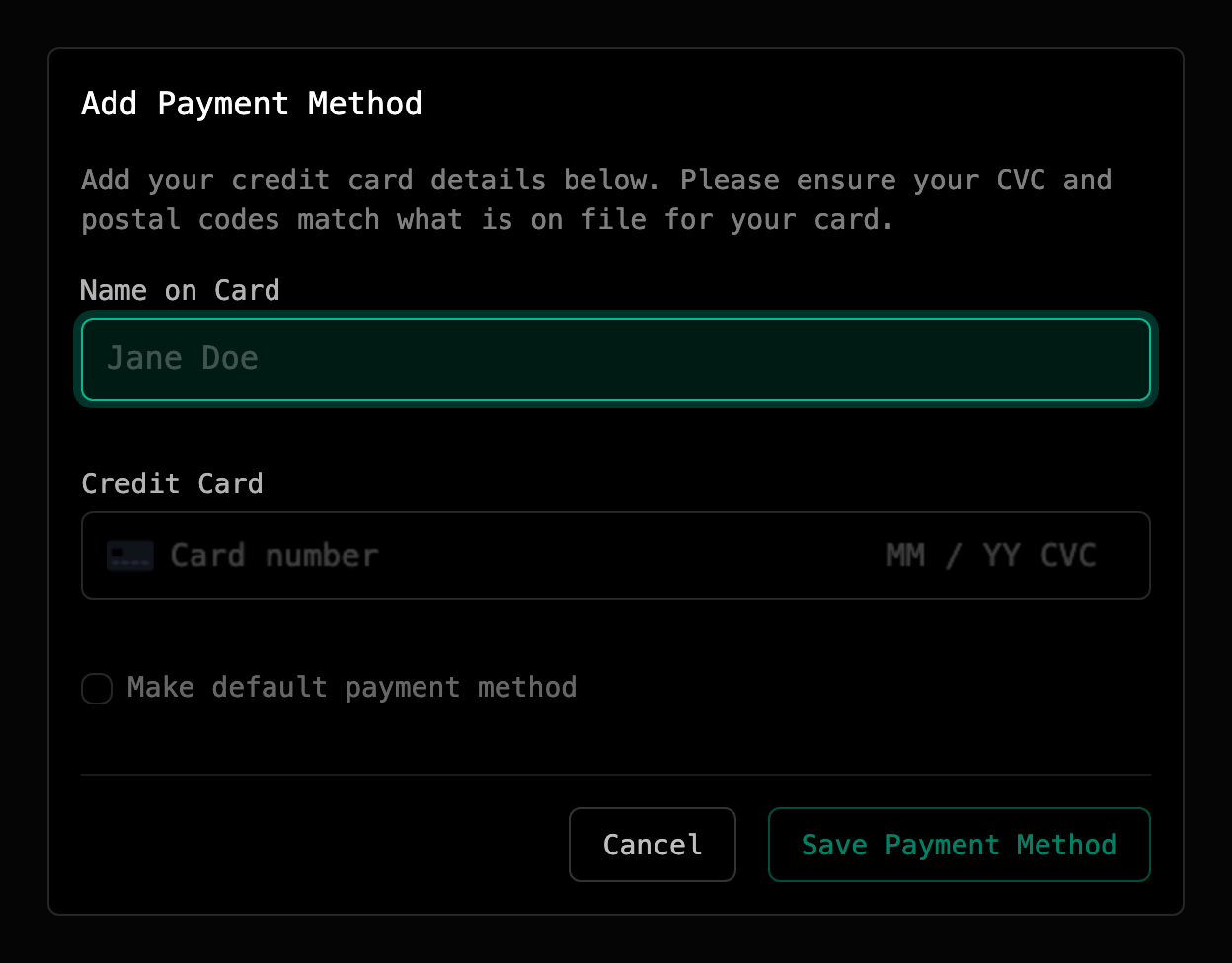
The dashboard only ever shows the safe parts of the card back to you: the brand and the last four digits. When your bank reissues a card and the card network passes the new details along, the saved brand and last four digits update on their own.
The default payment method#
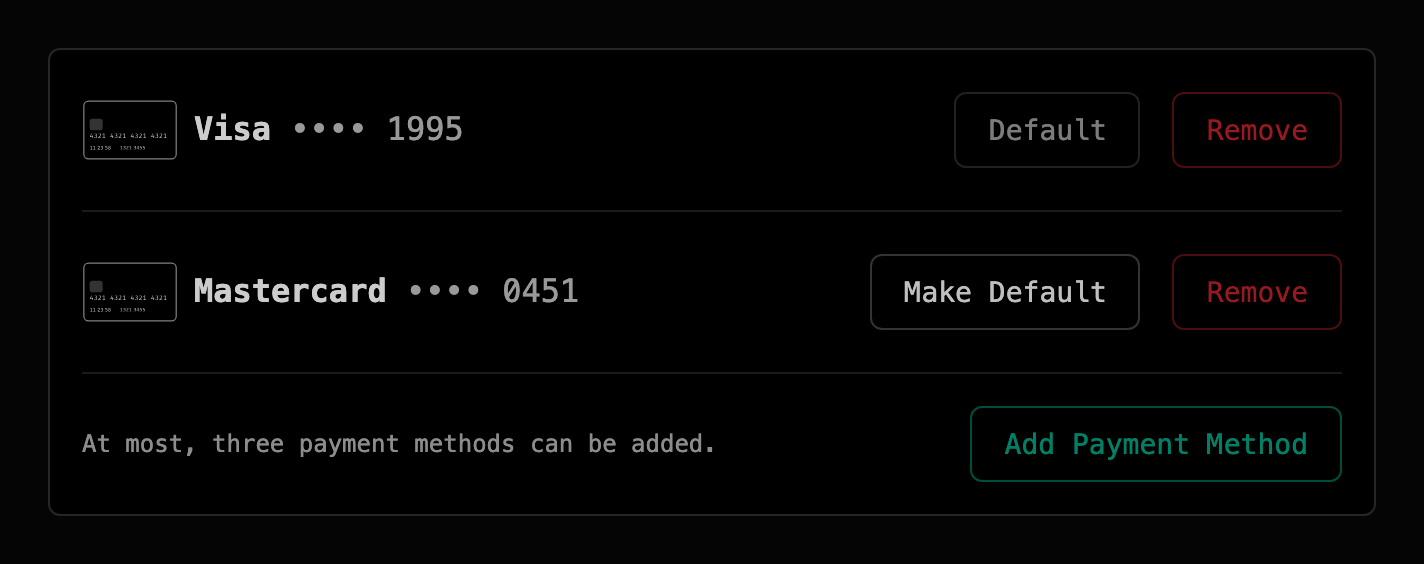
An account with a card on file has exactly one default. It's the card that gets charged whenever an invoice runs, whether the cycle bill or a manual payment. With no card on file, a charge fails until you add one.
- Adding a card doesn't auto-promote it. You choose during the add form whether the new card becomes the default or is stored as an alternative for later.
- Switching the default takes effect immediately. Any charge that runs after the switch, including the next scheduled retry of an unpaid invoice, uses the new default. Adding or promoting a card doesn't charge anything by itself: to settle an unpaid invoice right away, open it and use Pay Now.
Here are the cards you've saved, with the default marked:
Removing a card#
Any card on file can be removed, except the last one: you can't remove your only payment method.
You can remove the default directly. When you do, Primcloud promotes another card on file to default automatically.
Primcloud removes a card itself in one case: when a payment made on it is disputed with the card issuer. That applies even to the only card on file. You can add the card again afterwards. See Past-due & Suspension.
Supported cards#
Primcloud accepts Visa, Mastercard, American Express, and Discover.
Note
Prepaid and some virtual card products may work but aren't guaranteed, since some banks refuse recurring authorizations on them. If a prepaid card is declined, try a standard credit or debit card.
When a charge is declined#
If a charge on your default fails, Primcloud handles the retry based on why it failed. Some errors (a card that's clearly bad, like an invalid number, an expired card, or no card on file) fail the invoice immediately so you can fix the problem before compute keeps racking up. Others (a card the bank might approve on a second try, insufficient funds, an extra verification step from your bank) get retried a limited number of times on a schedule.
Whatever the retry path, if a charge doesn't succeed and the invoice stays unpaid, your account moves into Past-due status. That gives you 14 days to fix the payment before automatic suspension, plenty of time to add a new card or update the existing one. See Past-due & Suspension for the full flow.