Docs menu
Domains
Every environment gets a *.primcloud.app URL automatically. Custom domains can be attached to any environment, with automatic TLS.
On this page
Every environment gets a free *.primcloud.app URL the moment the application is created, with no configuration required. You can attach any number of custom domains on top, and Primcloud handles DNS validation and TLS for both.
The default subdomain#
Every environment gets a URL in the shape <app-slug>-<environment-slug>.primcloud.app automatically, created and TLS-enabled at the same time as the application. It's live before the first deploy finishes, so you always have a stable URL to hand out, even before your custom domain is set up.
The default subdomain can't be renamed or removed. It's the fallback URL Primcloud uses when the app hasn't finished deploying yet, when it's rendering the maintenance or suspended placeholder, or when you delete every custom domain you added. As long as no custom domain is set as primary, the primcloud.app URL is your primary. Set a custom domain as primary and the primcloud.app URL starts redirecting to it, but stays live.
Adding a custom domain#
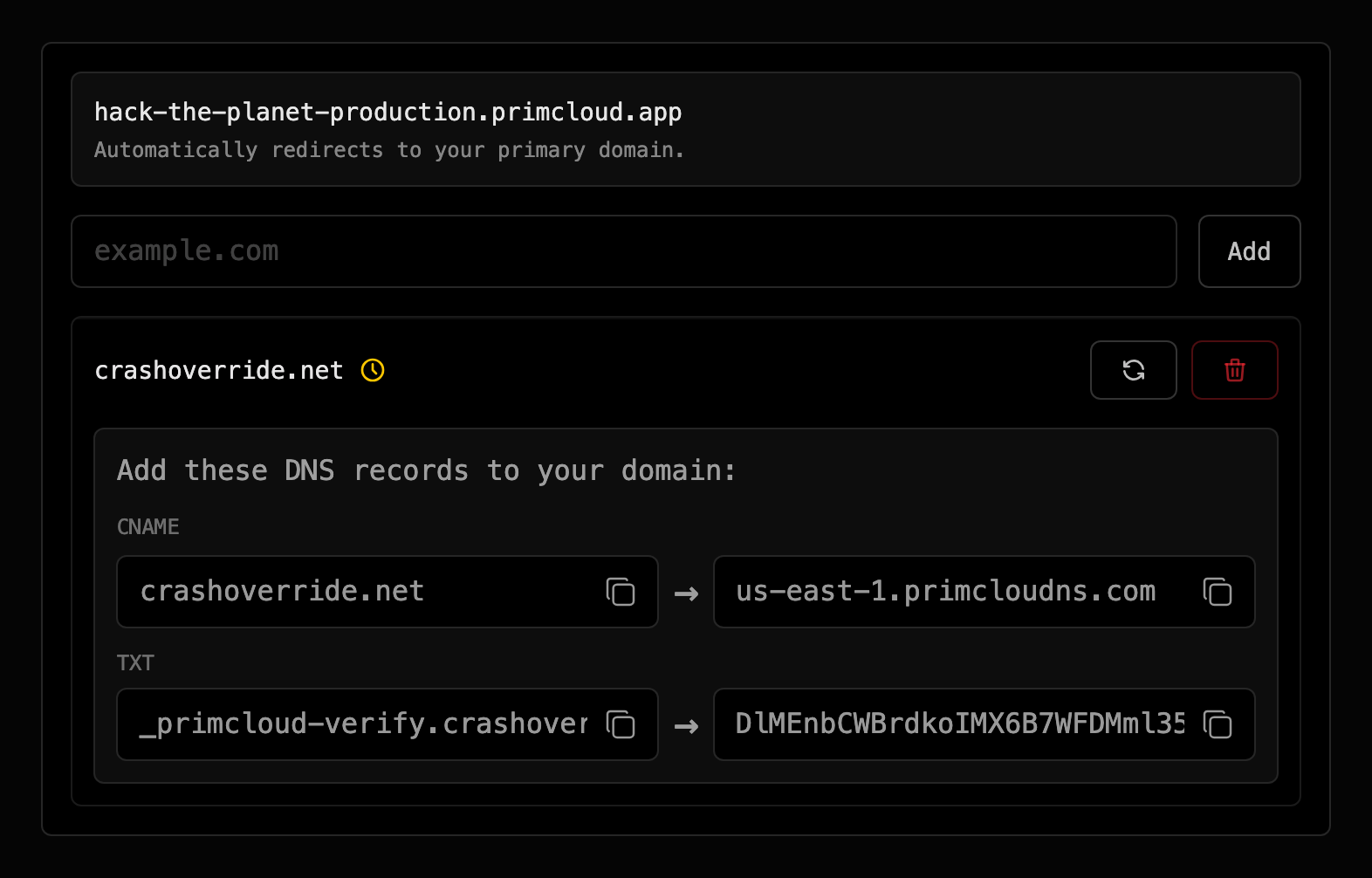
Add a custom domain from the application's Settings page. Enter the fully-qualified hostname you want to point at your app (www.example.com, example.com, staging.example.com, whatever) and Primcloud creates the record in pending state and shows you the exact DNS entries to add at your registrar.
A few limits to know:
- Wildcard domains need Pro or Team. On Standard, add each subdomain on its own. Pro and Team can add a wildcard domain (
*.example.com). - Custom domains go on the environment, not the application. Each environment has its own set of custom domains.
- One environment per hostname. A hostname that's already attached to an environment can't be added again.
- You can't manually add
*.primcloud.appdomains. Those are managed automatically.
DNS setup#
The panel shows the exact records to add. The shape is always the same: a CNAME from your hostname to <region>.primcloudns.com, plus a TXT verification record (_primcloud-verify.<your-hostname>) that proves you control the domain. Once you've verified a domain, its subdomains inherit that proof, so a subdomain of a domain you already verified skips the TXT step.
Subdomains (www.example.com, app.example.com, staging.example.com): add the CNAME at your DNS provider, done.
Apex / root domains (example.com with no subdomain): most DNS providers won't let you set a CNAME at the root of a domain. You've got two standard workarounds:
- ALIAS or ANAME records. If your provider supports them (DNSimple, Namecheap Premium, dnsExit, and others), they behave like a CNAME at the root and work directly with Primcloud.
- CNAME flattening. If your DNS is on Cloudflare, it flattens a CNAME at the root into A records automatically. Point the CNAME as normal and it works.
Verification and activation#
Once you add the domain, Primcloud starts checking DNS. When validation succeeds, the domain flips to Success and traffic starts routing.
If DNS hasn't propagated yet, validation keeps retrying for up to 72 hours and then the domain moves to Failed. That's not the end of the road: the panel shows a Retry button that reruns validation on demand, so once your DNS is actually in place, one click reactivates.
TLS#
TLS is automatic and covers both the default *.primcloud.app URL and every custom domain you add. Certificates are issued the moment a domain verifies, renewed continuously in the background, and served over HTTPS. There's nothing to configure and nothing to renew.
Primary, alternative, and redirect#
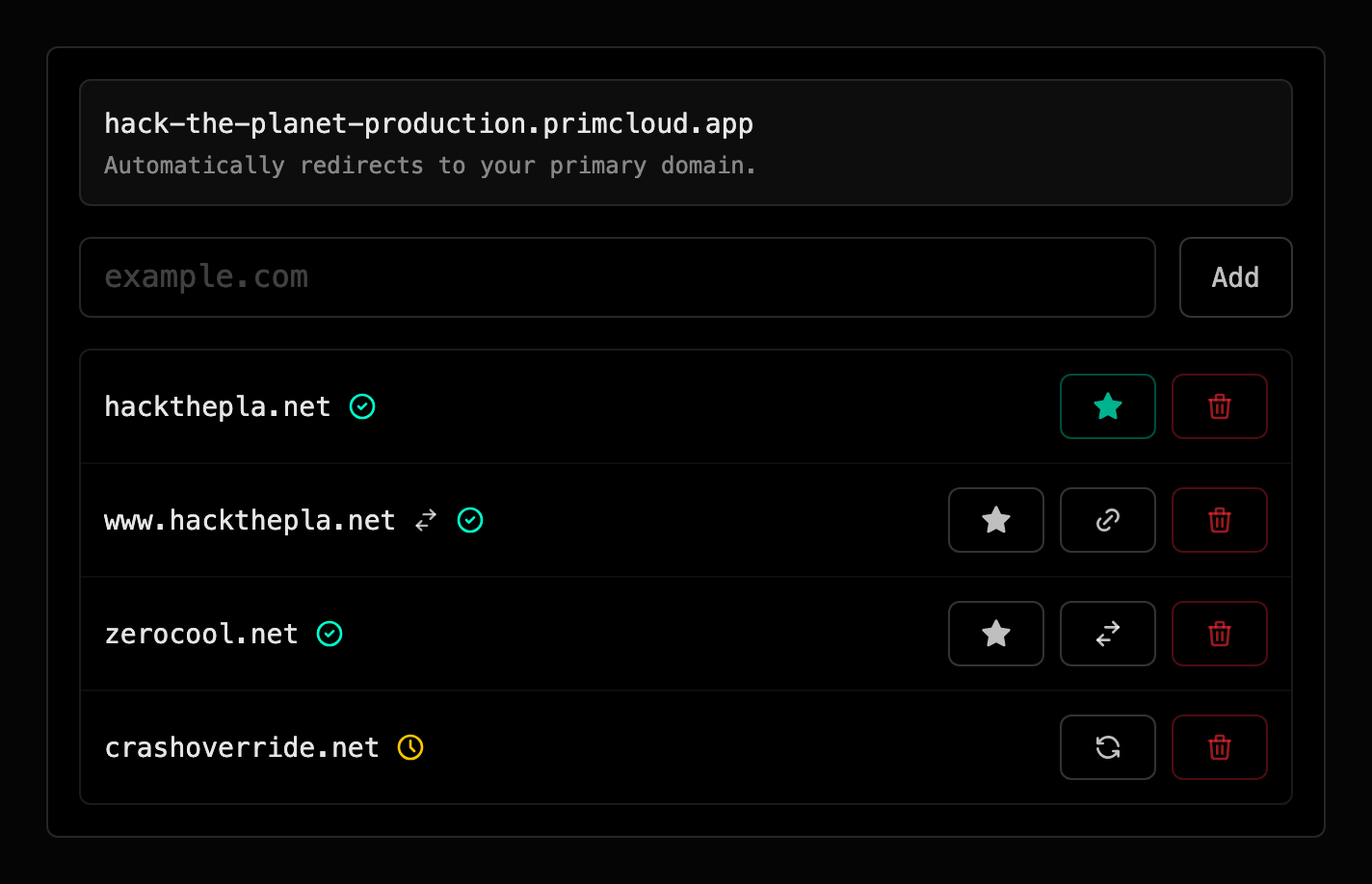
Every environment has one primary domain, the canonical URL for the app. It's what shows up prominently in the dashboard, in emails, and anywhere else Primcloud references your app's address. By default the *.primcloud.app subdomain is primary. As soon as you verify a custom domain, you can promote it to primary from the domains panel. The *.primcloud.app subdomain then starts redirecting to your new primary.
Every other verified custom domain is either an alternative or a redirect, and you choose which from the panel:
- Alternative: serves the app directly at that hostname alongside the primary.
- Redirect: sends visitors to your primary with a 30x redirect. This is how you point
wwwat your apex, or your apex atwww, so everyone lands on one canonical address.
Removing a domain#
Remove a custom domain from the panel with the delete button. Primcloud stops accepting traffic for the hostname immediately and tears down its ingress and TLS material.
Warning
Traffic to that hostname keeps hitting Primcloud until you update your DNS to point elsewhere. Until then, requests get a plain unreachable-app response. Nothing leaks to another customer's app, but there's no smooth redirect either. If you're switching to a new provider, change your DNS at the same time you delete the domain here.
The primcloud.app subdomain can't be deleted. Deleting a primary custom domain hands primary back to the primcloud.app URL with no downtime.