Docs menu
Invoices
Primcloud generates one invoice per billing cycle covering everything you consumed. The default payment method is charged automatically.
On this page
Primcloud generates one invoice per billing cycle that rolls up your plan's monthly fee and everything you consumed (metered compute, task runs, and build-minute and bandwidth overages) into a single bill, less any credits on your account. The default payment method is charged automatically once the invoice is finalized. This page walks through what statuses invoices move through, when Primcloud retries a failed charge, and what to do when a charge fails.
Invoice statuses#
Every invoice moves through one of these statuses:
- Draft: the current cycle's running bill, refreshed every hour and shown under Current Period on Account → Billing. It joins your invoice list once the cycle closes and it's finalized.
- Open: the cycle closed and the invoice is finalized, but the charge hasn't succeeded yet. Either the automatic charge is in-flight, the retry schedule is still running, or the charge failed and the invoice is waiting for action.
- Paid: the charge succeeded. This is the resting state for a normal invoice.
- Void: the invoice was cancelled by Primcloud staff. Usually a support-side correction; you'll see it if a duplicate or incorrect invoice was cleaned up. Voiding a paid invoice refunds what was charged to your card.
- Refunded: a paid invoice that was later refunded in full.
- Disputed: the payment was disputed with the card issuer (a chargeback) and the issuer hasn't decided yet. A disputed invoice can't be paid or refunded. If the issuer sides with Primcloud the invoice goes back to Paid; if it upholds the dispute the invoice goes back to Open and the disputed amount is owed again. See Past-due & Suspension.
- Rolled Over: the invoice was smaller than Primcloud's minimum charge (currently $1.00). Rather than charge a card for a few cents, the balance rolls into the next invoice as a "Previous balance" line item.
Viewing invoices#
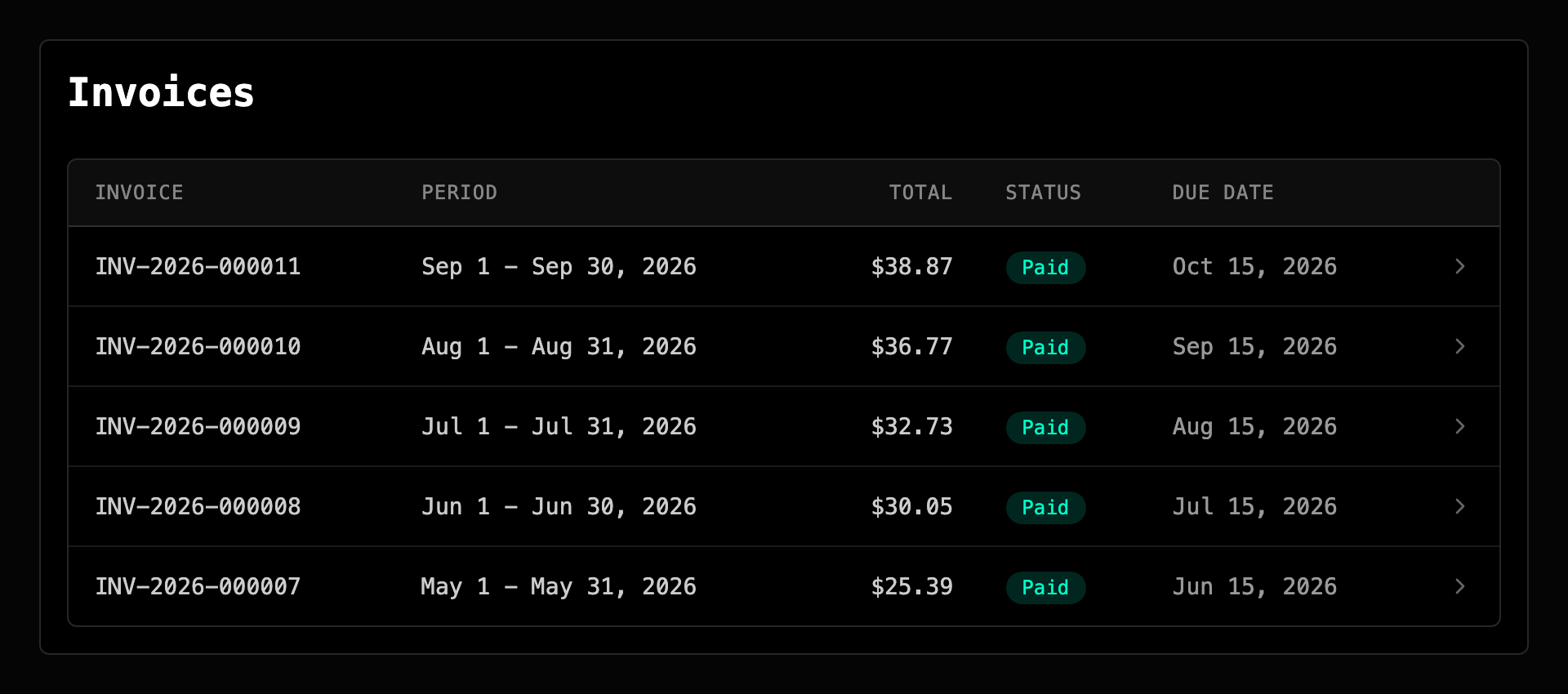
Every invoice lives at Account → Billing → Invoices in the dashboard. Each row shows the invoice number, the billing period, the total, the status, and the due date.
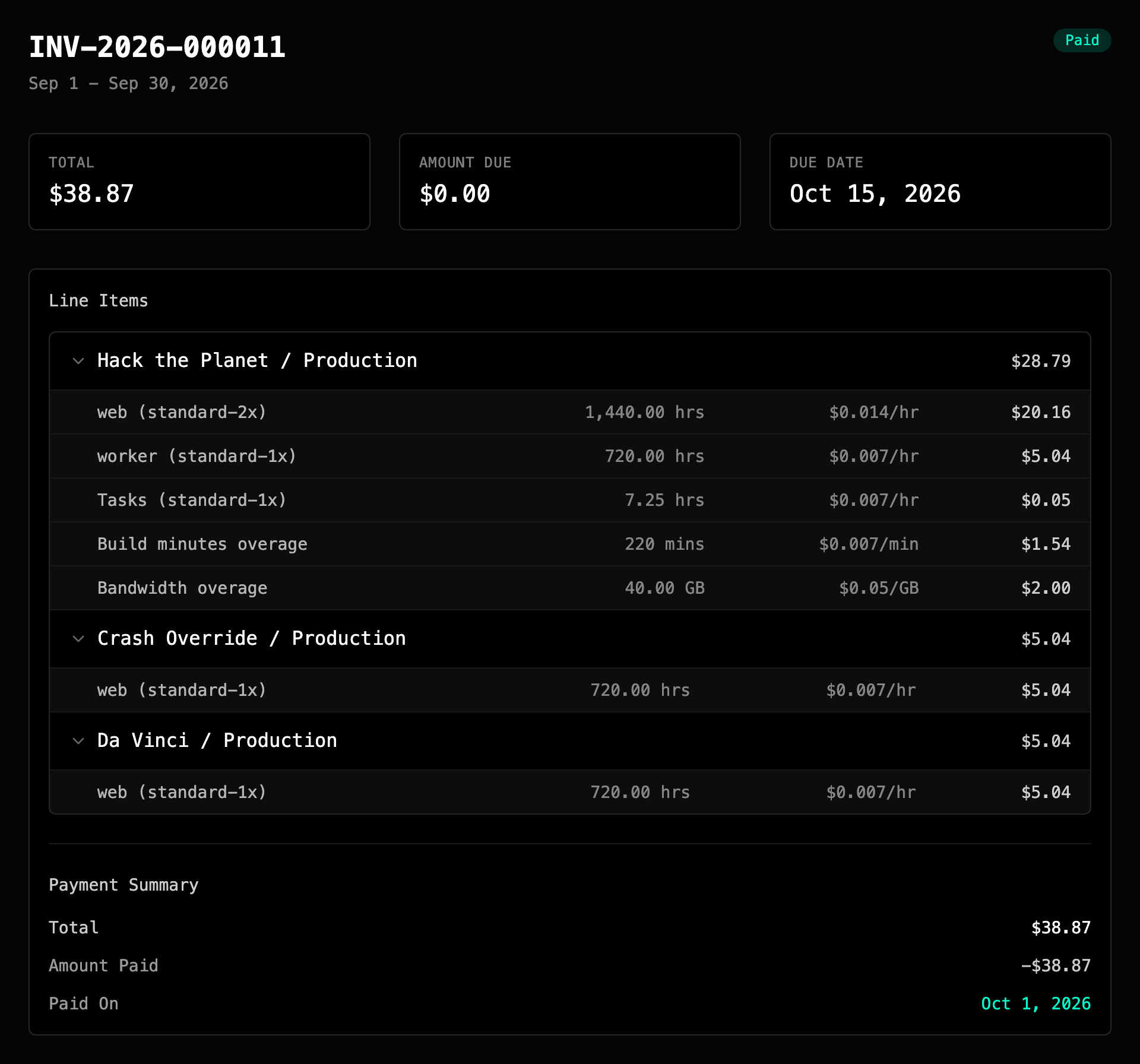
Click any invoice to open the full detail view: line items grouped per application and environment, any credits applied, the most recent failed charge and its reason, and a Pay Now button when the invoice is Open with a balance due.
Downloading a receipt#
The invoice detail page is the receipt. It has everything you need for expense reports, tax filings, and accounting: the billing period, the itemized breakdown, the total, the payment status, and the date it was paid. If you need a saved copy, use your browser's Print → Save as PDF.
Automatic retry behavior#
When Primcloud charges a card and it fails, the retry behavior depends on why it failed. There are three patterns:
Fail immediately. Some errors mean "there's nothing to retry": the card number is invalid, the card is expired, the account has no card on file, or the amount is below the minimum charge threshold. In those cases Primcloud fails the invoice on the first attempt so you can fix the underlying problem without waiting through a retry schedule. Example: a card whose expiration date has passed. No schedule will fix that, only a new card will.
Retry once, then fail. Some errors might resolve on their own: the bank declined the charge without giving a reason, there weren't enough funds when the bank checked, or the bank asked for extra verification. Primcloud tries the charge once more a day later so those can clear, and if the retry also fails, the invoice stays Open with the failure shown so you can act on it. Example: an insufficient-funds decline. One retry a day later after your paycheck lands is a real path to success.
Full retry schedule. Some errors are processing errors on the payment processor's side rather than a problem with your card. Primcloud runs the full schedule against those: up to three attempts, the second a day after the first and the third two days after that.
You don't have to remember the mapping. The invoice detail page shows the reason the most recent charge failed, and each failure email says when the next automatic attempt runs, if one is scheduled.
Paying an invoice yourself#
Every Open invoice with a balance due has a Pay Now button on its detail page. Click it, confirm in the dialog, and Primcloud charges the invoice's full amount due to your current default payment method. It's useful when you just added or promoted a new card and want to clear a stuck invoice immediately without waiting for the automatic schedule to catch up.
Paying is rate-limited to one attempt every 5 minutes per invoice, so you can't hammer the button and burn through your card's authorization limits. If you try again inside the window, the dashboard tells you how many seconds until the next attempt is available.
If the last charge failed with a terminal error (like an invalid or expired card) and you haven't changed a payment method since, Pay Now shows "Update your payment method before paying this invoice." instead of charging. The same failed card would just fail again, so Primcloud saves you the round trip. Head to Payment Methods to add or update a card, then pay again.
Refunds#
Refunds go through support. If you think you were charged in error (a stuck resource we should have caught, a mistaken deploy that ran overnight, a billing bug), send us a note and we'll take a look. An approved refund returns everything charged to your card for that invoice in one refund and restores any credits the invoice used, and the invoice's status flips to Refunded in your dashboard.
There's no self-serve refund button by design: every refund request gets a human look at the underlying billing to make sure we understand what happened and that the same thing doesn't bite the next customer.
Rolled-over invoices#
If your total for a cycle comes in below the $1.00 minimum charge (for a very small workload with a lot of downscale, or a partial month), Primcloud won't try to charge the card. Instead, the invoice is marked Rolled Over and the balance moves onto the next invoice as a line item labeled "Previous balance" with the rolled-over invoice's number. You end up paying it eventually; it just gets combined with the next real charge instead of being processed as its own tiny transaction.
If your next invoice also ends up below the threshold, the balance keeps rolling until it clears the minimum and gets charged. Nothing gets lost, and nothing racks up processing fees for pennies.