Docs menu
Moving an app from Fly.io
A walkthrough for moving a running Fly.io app to Primcloud with zero downtime.
On this page
Before you start#
You'll need a Primcloud account with GitHub connected (the Quickstart walks you through it) and flyctl, so you can read your secrets.
A few things go by different names here:
| On Fly.io | On Primcloud |
|---|---|
Process group in [processes] |
Pod formation |
| Machine count | Instances |
| VM size | Compute size |
fly secrets |
Secrets |
fly ssh console -C |
Tasks |
*.fly.dev |
*.primcloud.app |
The guide follows one app, hack-the-planet, from start to finish.
1. Turn your fly.toml processes into a Procfile#
Primcloud doesn't read fly.toml. Take its [processes], and the release_command under [deploy] if you have one:
[deploy]
  release_command = "perl bin/release.pl"

[processes]
  app = "perl bin/board.pl"
  worker = "./bin/queued -d"

[http_service]
  internal_port = 8080
  processes = ["app"]
Each becomes a line of a Procfile at the root of your repo, with release_command as the release line:
release: perl bin/release.pl
web: perl bin/board.pl --port=$PORT
worker: ./bin/queued -d
Only the web line gets HTTP traffic, on the port in $PORT. The group your [http_service] sends traffic to, app here, becomes web, and it binds to $PORT instead of the internal_port.
No [processes] section? Your Machines ran the CMD from your image. Most languages start a sensible web process on their own, and your language's page under Language Support says what it runs. If you need your CMD instead, write it as the web line.
Note
On Standard, the build uses your language's own files and ignores your Dockerfile. Move the packages it installs with apt-get into a project.toml, as the Customizing the build page for your language under Language Support shows. Pro and Team can build from a Dockerfile, as Plans shows.
2. Pull up your secrets#
fly secrets list -a hack-the-planet
Leave PORT out, since Primcloud sets it for you. Fly shows each secret's name but never its value, so get the values from where they came from: your password manager, or the dashboard of the service that issued them. Copy the [env] section of your fly.toml too.
Warning
Don't copy a whole environment dump from a running Machine. Leave out PRIMARY_REGION and every variable starting with FLY_, which Fly sets for the Machine, and PATH, HOME and HOSTNAME, which would override the values your app gets here.
3. Import your repo#
From your applications list, hit Import Git Repository. Pick the repo, then on the Configure step choose your branch and region.
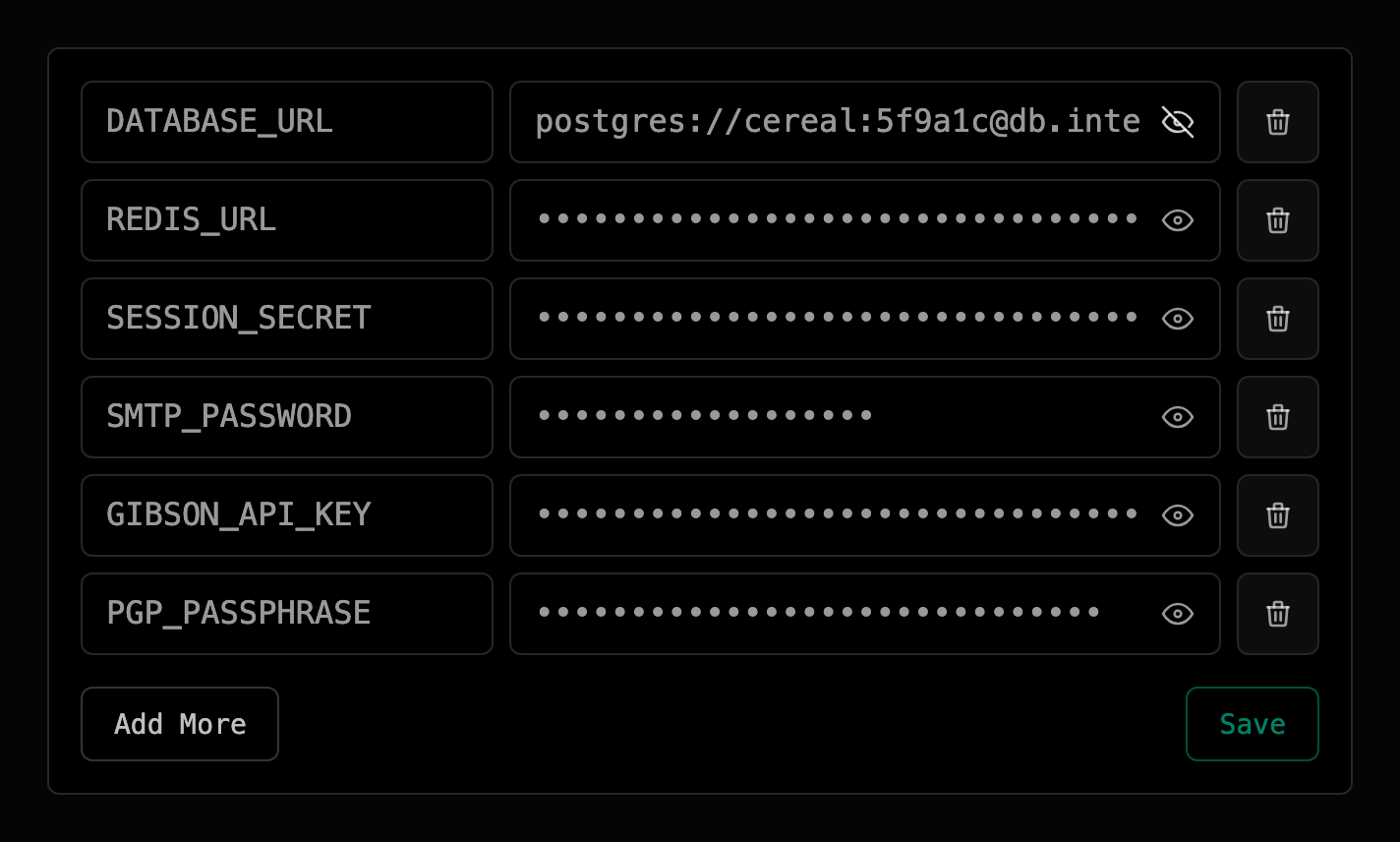
That Configure step also has a Secrets list. Add your secrets there and they're saved before the first build.
Check the commit and hit Import. The first deploy starts right away.
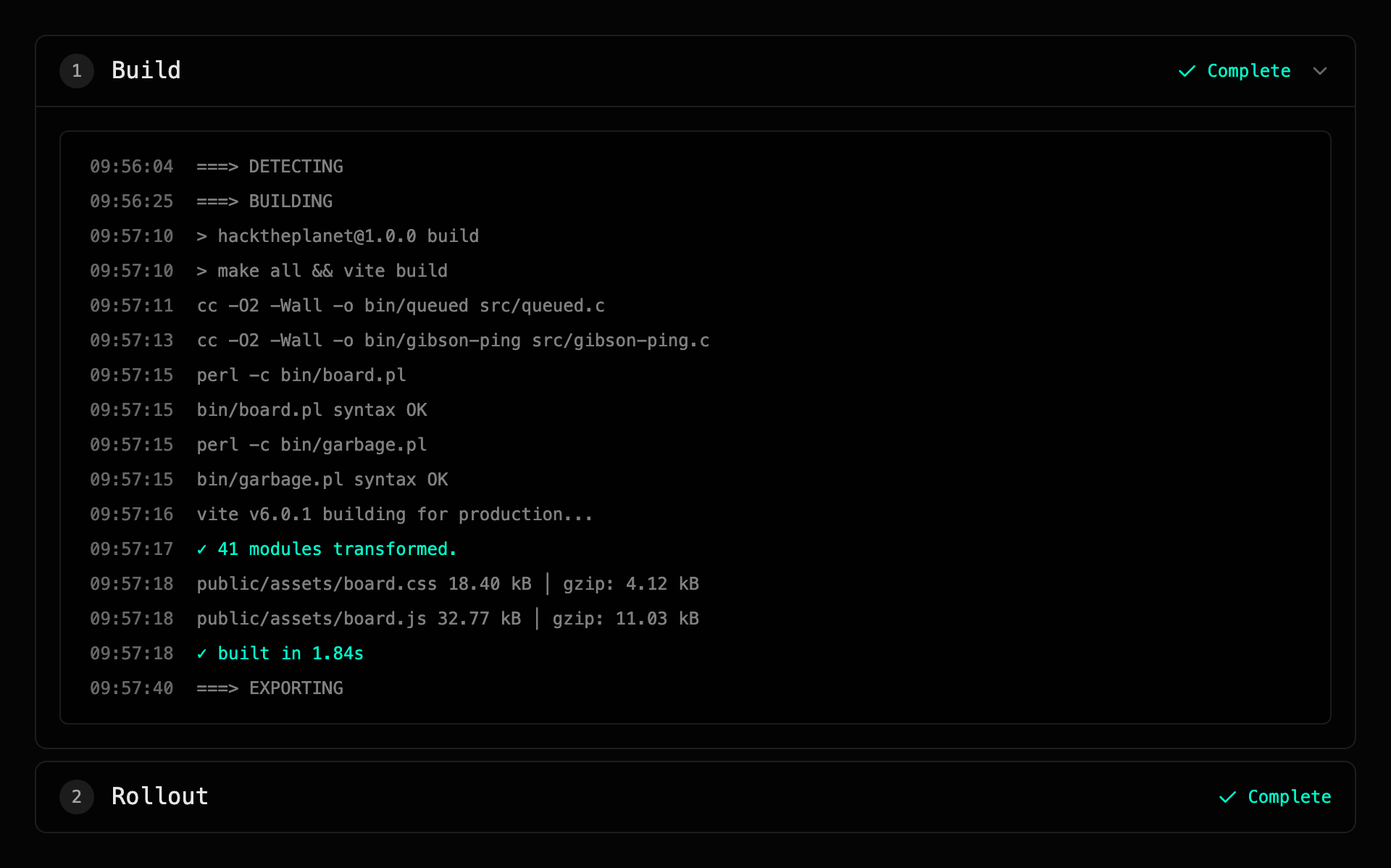
Once Rollout shows Complete, open your app at hack-the-planet-production.primcloud.app. Forgot a secret? Add it under Settings → Secrets and save. Once your app is running, saving redeploys it with the new value, no rebuild needed. If the first deploy failed, save the secret, then hit Redeploy on that deployment.
Warning
Pods don't keep files between restarts or deploys. If your app writes to a Fly volume, move that data into an object store before you move your domain.
4. Turn your workers on#
Important
After the first deploy, only web is running. Every other process starts at 0 instances, so your workers are off until you scale them up.
Open Pod Formations on your app's dashboard and expand a formation. Instances is your Machine count. Formation Size is your VM size: the memory and CPU each instance gets.
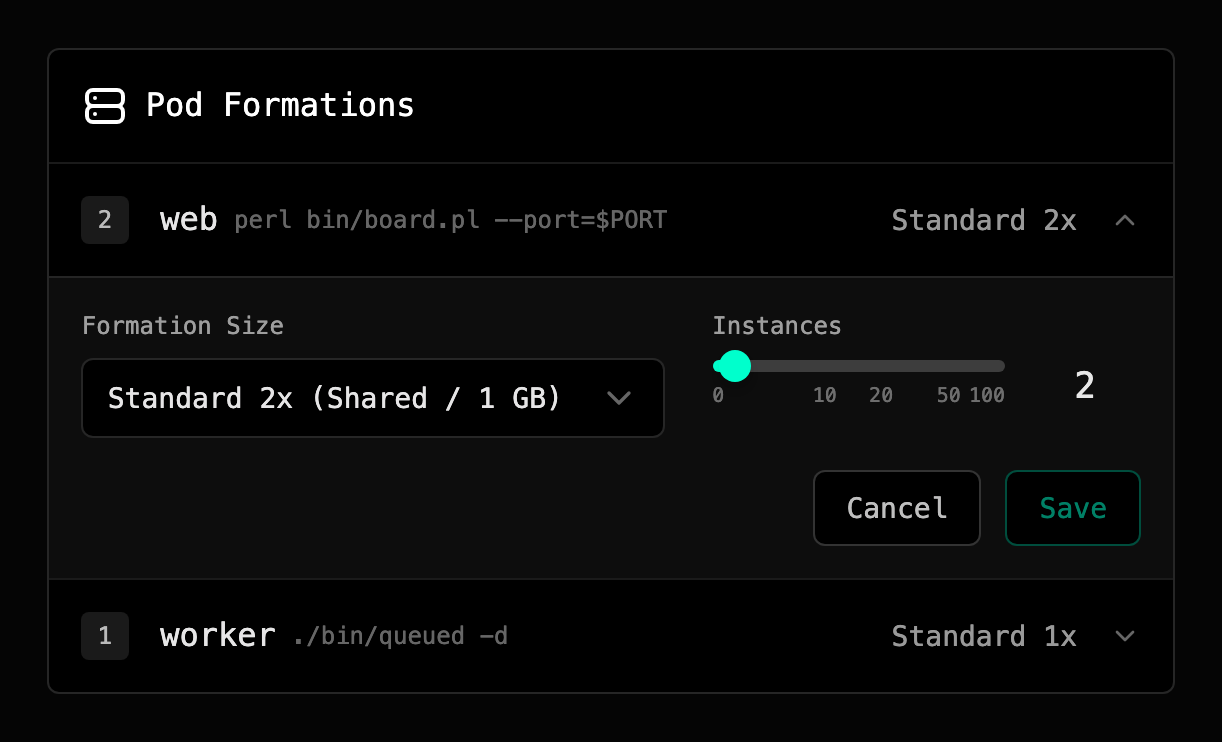
Everything starts on Standard 1x, our smallest size. Memory is a hard limit, so pick a size with at least as much memory as your Machines have on Fly. Scaling formations has the details.
5. Swap fly ssh console -C for tasks#
Anything you'd run with fly ssh console -C becomes a task. It runs your command on a fresh instance of your current build, with the same secrets as your app, and streams the output while it runs.
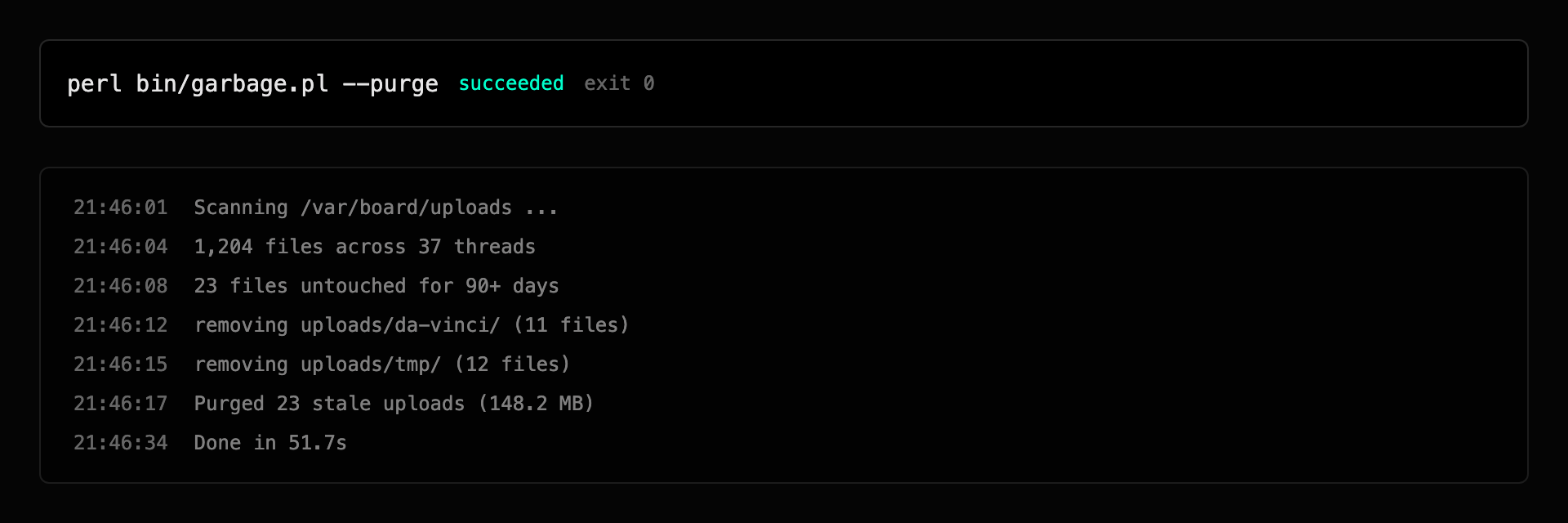
A task isn't an interactive shell. Give it a command and it runs until that command exits.
6. Move your domain#
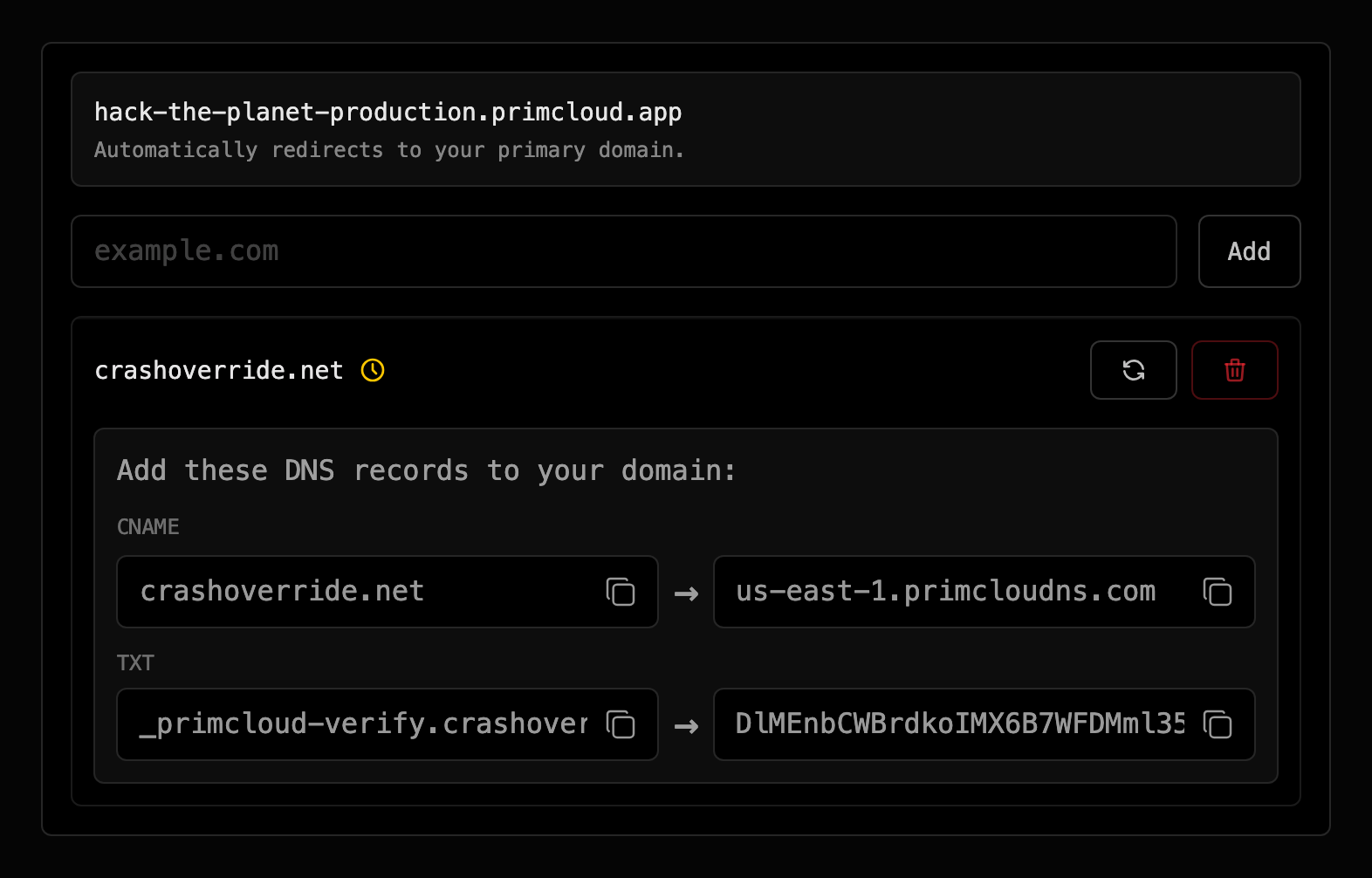
- Add your domain in your app's Settings. We'll show you the two DNS records to add, a CNAME and a TXT record.
- Add the TXT record at your DNS provider.
- Replace the records that point your domain at Fly, its A and AAAA records or a CNAME to your
fly.devhostname, with the CNAME we showed you. For a root domain likeexample.com, use an ALIAS, ANAME or flattened CNAME; DNS setup explains why. - Wait for the domain to show Success. We keep checking DNS for up to 72 hours, and once it verifies, your app is served over HTTPS.
- Make it your primary domain. Your
primcloud.appURL then redirects to it.
7. Switch Fly off#
Delete your Fly app:
fly apps destroy hack-the-planet