Docs menu
Deployments
A deployment is one full build-and-release cycle: Primcloud builds your app in a container, then releases the image to your environment's formations.
On this page
A deployment is one full build-and-release cycle. Primcloud takes a specific commit from your repo, builds it into a container image, then releases that image to your environment's pod formations. Every deploy is addressable, cancelable while it's running, and rollback-able after it succeeds. This page walks through what happens between "I pushed" and "my new code is live."
The build phase#
The build phase takes your source and produces a runnable container image.
Primcloud detects your app's language from the files in your repo: package.json for Node.js, composer.json for PHP, Gemfile for Ruby, requirements.txt / Pipfile / pyproject.toml for Python, and so on. Detection picks the right toolchain from the Primcloud Runtime and drives the rest of the build: install dependencies, compile assets, and package everything into a runnable artifact for the release phase.
Every build runs on Hopper, the first generation of the Primcloud Runtime. Each generation is named after a computing pioneer: Hopper after Grace Hopper, who built the first compiler.
Layer caching between builds is on by default. Dependency downloads and asset compilation you already ran for a previous commit come back instantly on the next build if nothing that affects them changed.
If any step fails (dependency resolution errors, compile errors, a broken Procfile, anything else that returns a non-zero exit), the build phase stops and the deployment status flips to Build Failed. Nothing about your running app changes: the previous release keeps taking traffic. The failed deployment stays in your deployment history: inspect the build log, fix the underlying issue, and either push a new commit or, while it's inside the rollback history window, redeploy this one.
The release and rollout phases#
Once the build succeeds, the release and rollout phases take over.
If your Procfile declares a release process, Primcloud runs it once against the new build, before anything rolls out. Use it for database migrations, cache warm-ups, or asset uploads. If it exits non-zero, or is still running after its time limit (20 minutes on Standard, 45 on Pro, 60 on Team), the deployment fails and the previous release keeps running.
Then long-running formations roll out. Primcloud updates each formation's pods to the new image one at a time: new pods start with the new image, get marked ready, then old pods terminate. Traffic to web never gets dropped during the swap. If a new pod fails to start (crashloop, bad config, missing env var), the old pod stays up and the release halts before touching the rest, so you don't end up with a half-updated fleet.
When every formation is running the new image, the deployment status flips to Rollout Succeeded and the deploy is live.
What triggers a deployment#
Five things create a deployment:
- A push to a mapped branch. GitHub sends a webhook, Primcloud finds the environment tracking that branch, and a new deployment kicks off against the pushed commit.
- A manual deploy. Trigger a deploy by hand from the dashboard without waiting for a push. It rebuilds and releases the current release's commit again.
- A secret save. Saving secrets creates a release-only deployment: no rebuild, the last successful image gets rolled with the updated values applied to the pods.
- A compute-size change on a formation. Same shape as a secret save: no rebuild, the last successful release gets rolled with the new pod size.
- A rollback or redeploy of an existing deployment. Covered below.
Deployment statuses#
A deployment moves through a handful of statuses, grouped by phase:
- Queued / Build Starting / Build Started: the build phase is preparing or running.
- Build Succeeded: build is done, release is about to begin.
- Build Failed: terminal. Build did not complete; nothing about the running app changed.
- Release Starting / Release Succeeded: the
releaseprocess is running or has completed. - Release Failed: terminal. The
releaseprocess exited non-zero, ran past its time limit, or could not start; the deploy stopped without touching long-running formations. - Rollout Started: long-running formations are rolling to the new image.
- Rollout Succeeded: terminal. Everything is on the new image. This is the "live" state.
- Rollout Failed: terminal. Something went wrong while rolling formations.
- Canceled: terminal. You canceled the deployment before it reached a terminal state on its own.
Only a Rollout Succeeded deployment is considered "the live release" for the environment.
Canceling a deployment#
You can cancel a deployment any time before it reaches a terminal state: during the build, during the release job, and even during the rollout. Cancel from the deployment page.
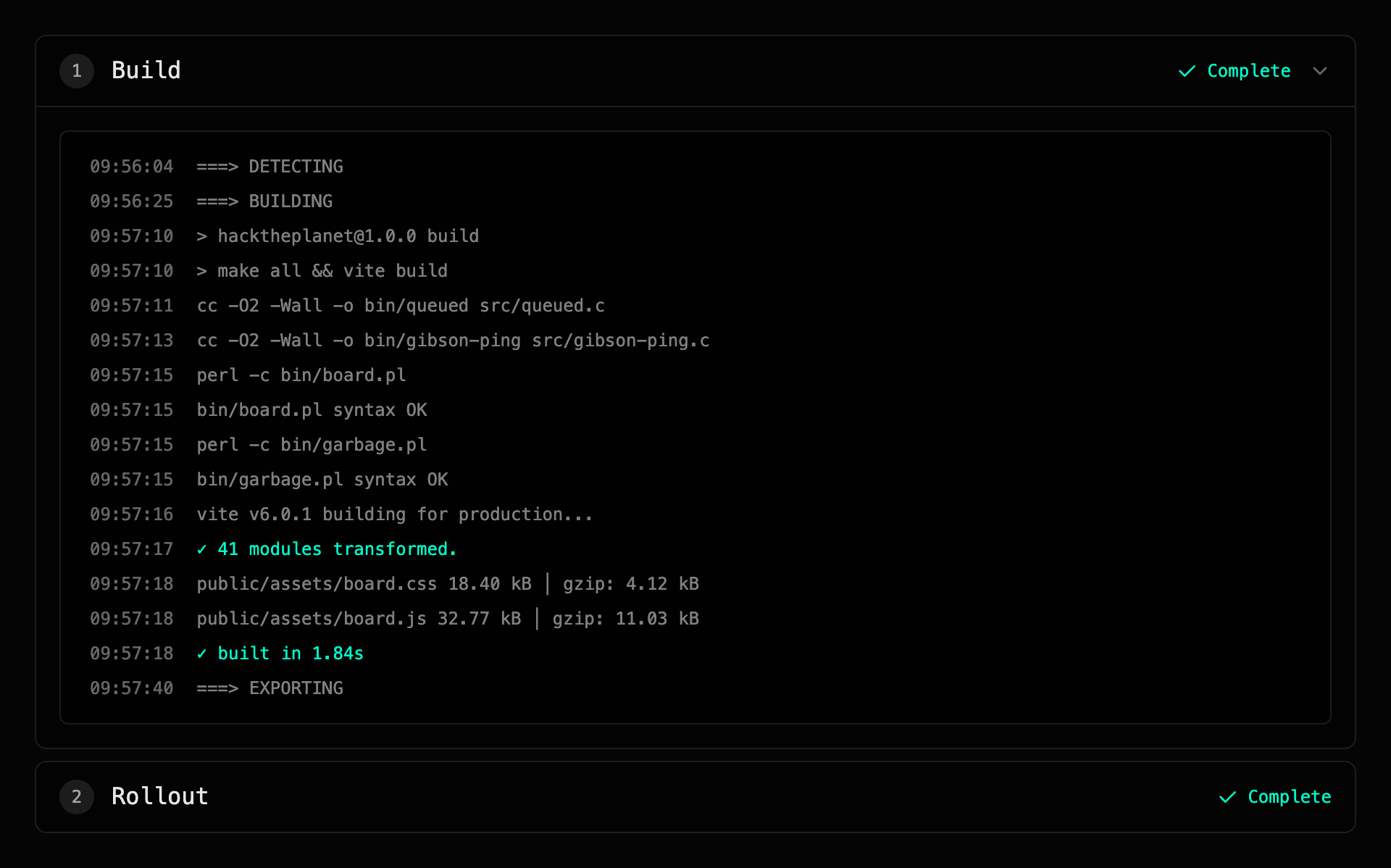
What happens on cancel depends on which phase was running:
- Canceling during build: the build job is torn down; no image gets pushed.
- Canceling during release: the
releasejob is torn down; long-running formations are never touched. - Canceling during rollout: the rolling formation update stops and every formation is rolled back to the previous Rollout Succeeded deployment's image. Any pods that already picked up the new image return to the old one.
A new release only takes hold when the deploy completes cleanly. Once you have a Rollout Succeeded deployment, that one stays live through any cancel.
If you cancel during rollout and the environment has never had a successful release, there's nothing to return to. The formations are removed and the environment goes back to its never-deployed state. Your next deploy brings them up fresh.
One thing cancel does not undo: secrets. If the canceled deploy carried a secret change, the new values stay applied: your pods come back on the previous image with the current values. Secrets are the settings you saved deliberately, so canceling a deploy doesn't reach back and revert them. To undo a secret change, edit it again in settings.
Rollback#
Rolling back returns your environment to a prior successful release. You can only roll back to a deployment that ended in Rollout Succeeded, and not to the one that's currently live. From the deployment history, hit Roll back on any earlier successful release inside the rollback history window.
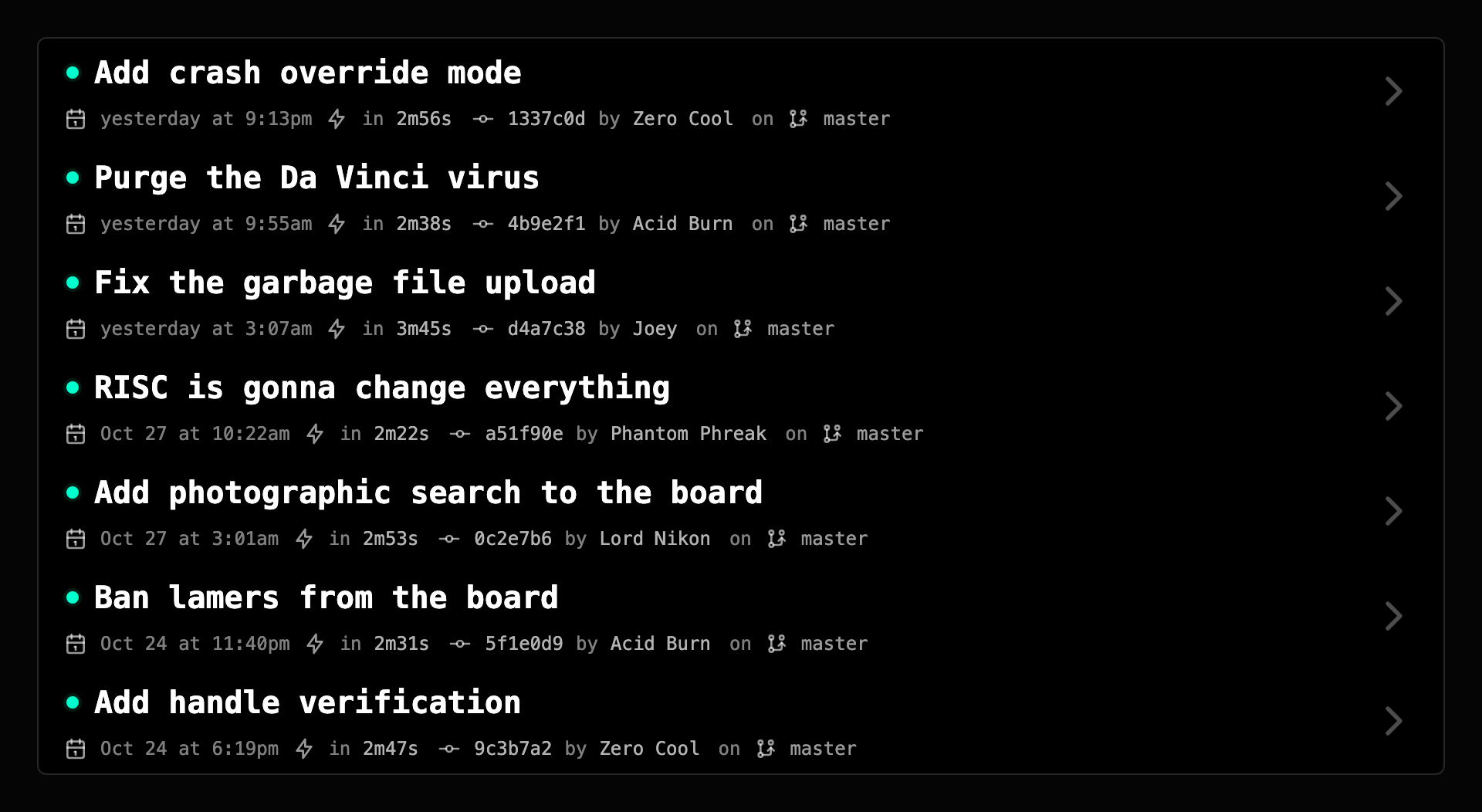
A rollback creates a new deployment in your history (marked as a rollback of the target release), skips the build phase, and re-runs the release and rollout phases, including the release process if your Procfile declares one. If that release process fails against the older code (a schema that already migrated forward, for example), the rollback fails and the current release stays live.
Redeploy#
Redeploy re-runs the build phase from the same commit. It's for the case where the build failed for some transient reason (a flaky package registry, a transient network blip, a missing secret you've since added) and you want to try the same commit again without touching the repo.
Redeploy is only available on Build Failed, Release Failed, Rollout Failed, and Canceled deployments inside the rollback history window. You can't redeploy a successful release (there's nothing new to try). It creates a fresh deployment tied to the same commit, runs the build from scratch, and follows the normal release flow if the build succeeds.
Deploy logs#
Every deployment streams its build log and release log live to the deployment page. Once the deployment reaches a terminal status, the logs stay attached and searchable in the same place. See Logs for how long logs are kept and how to query them.